How to Make Videos With AI: From Script to Final Edit
A practical 30-second storyboard, shot planning, narration, editing and rights checklist—with costs and limitations labeled honestly.
The short answer
Plan the message, write and time a script, storyboard short shots, make or record the assets, assemble them in an editor, caption and review the export. AI-generated shots are ingredients, not a complete professional production or a substitute for rights checks.
A practical 30-second storyboard, shot planning, narration, editing and rights checklist—with costs and limitations labeled honestly.
01 / The story
Start with one deliverable, not an unlimited prompt
A finished video needs a purpose, an audience and a destination. Choose one message and one next step before choosing a generator. A 30-second promotion, a tutorial and a training explainer are different jobs. Generated footage can help, but some factual details are better recorded.
This is an illustrative workflow, not a project Qlauson produced or a guarantee of a professional result. The fictional business example below is invented for planning; it is not a real shop, client, location or environmental claim.
For model selection and dated prices, use our six-tool video comparison. This article focuses on production from brief to export, not another ranking.
02 / The story
Step 1: write and time the script
For a 30-second first draft, around 60–70 words can be a planning starting point, but reading pace, pauses and language vary. Time an actual read. Cut ideas before accelerating the voice until it becomes hard to understand.
A useful brief states the audience, single message, factual claims, destination format and call to action. Verify every claim before generating visuals. A polished video about an inaccurate price or nonexistent feature is still inaccurate.
AI can propose wording, but a person should retain responsibility for names, numbers, promises and tone. Do not ask a generator to invent a testimonial or pretend a conceptual business has real customers.
03 / The story
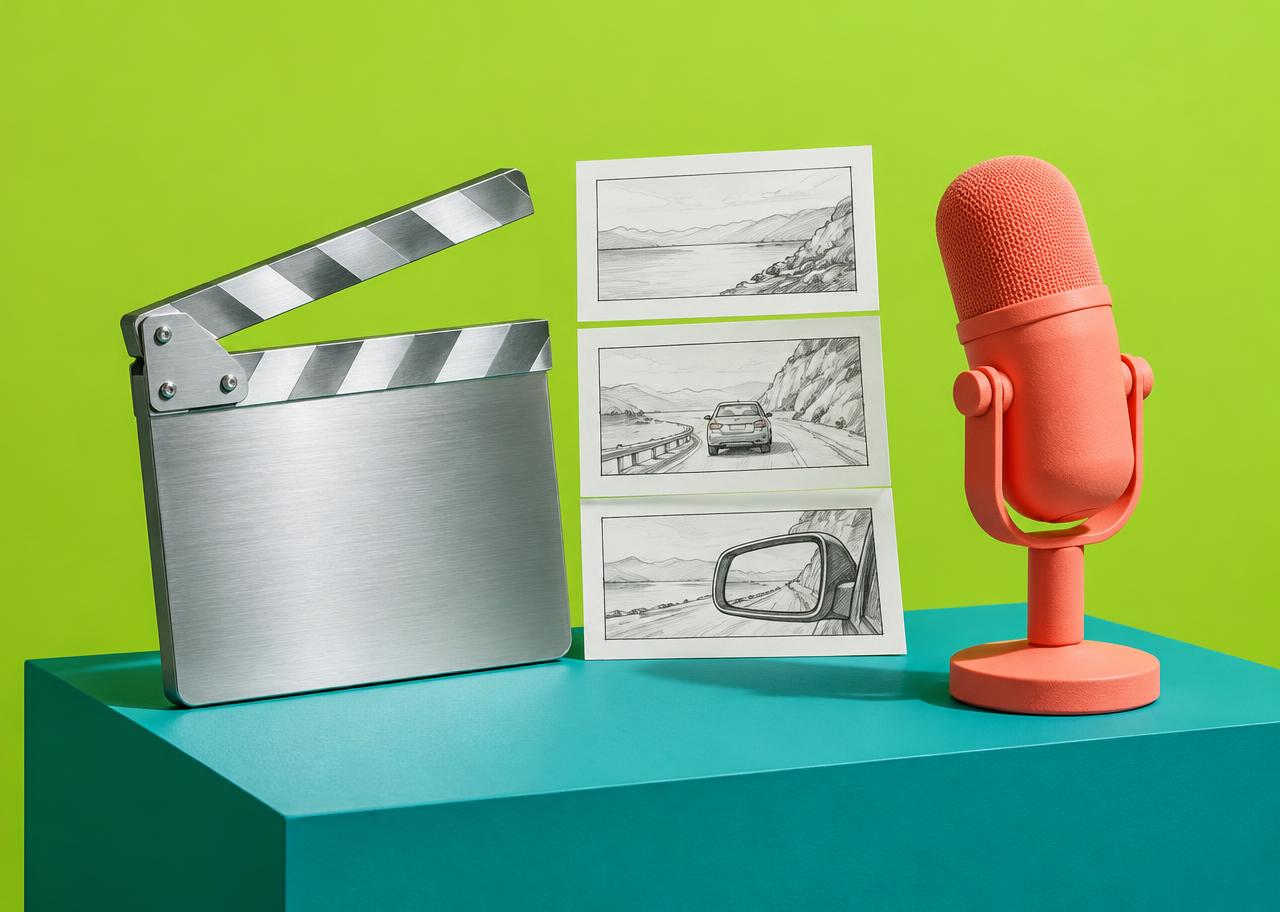
Step 2: turn the script into a storyboard
Our fictional Harbor Refill example uses six five-second beats. For a real store, replace every process, claim and URL with verified material. Five seconds per beat is a planning structure, not a requirement of every model or platform.
| Time | Visual | Narration idea | Review note |
|---|---|---|---|
| 0–5s | Owned image of an empty refill bottle | Everyday essentials can start with a refill. | Hook text added in editor |
| 5–10s | Conceptual shop interior | Meet Harbor Refill. | Fictional concept; no real location implied |
| 10–15s | Authentic product close-up | Bring a clean container and choose what you need. | Verify actual process before adapting |
| 15–20s | Illustrated process steps | Fill, weigh and take it home. | Check sequence against real practice |
| 20–25s | Reference-led atmosphere | Make a small change to your routine. | No unsupported environmental benefit |
| 25–30s | Editor-built title and CTA | Explore the range and plan a visit. | Use a verified real URL if adapted |
04 / The story
Step 3: prepare truthful references
Use images and footage you own or are licensed to use. Keep a small style sheet for palette, lighting, camera angle and object proportions. For a genuine product demonstration, preserve the actual product and interface instead of generating a plausible but false replacement.
If the input shows a person, check permission for the intended use and applicable privacy rules. A tool subscription does not grant rights to someone else’s likeness or a downloaded photograph. Avoid uploading confidential client assets to unapproved services.
Reference-led generation can help continuity but does not guarantee it. Inspect shape, labels, colors and physical actions across shots rather than trusting the first frame.
05 / The story
Step 4: generate one shot at a time
Specify subject, action, camera movement, setting and intended duration. In image-to-video, emphasize motion rather than repeatedly redescribing the image. Runway’s guide and Adobe’s image workflow describe separate input modes; the controls available depend on the selected model. [1] [2]
An illustrative brief could ask for a gentle camera push toward an owned bottle image with stable object proportions and soft studio light. It is a shot instruction, not a promised exact result. Generate a small set of alternatives and retain only those meeting your checklist.
Watch hands, reflections, labels, collisions and continuity where relevant. Use real footage if the generated action misrepresents how a product works. Keep exact logos, text and data visualizations in controlled editing rather than ask a video model to reproduce them.
06 / The story
Step 5: make the sound intentionally
Options include a recorded human voice, documented text-to-speech tools or native audio in a supported video mode. Google documents Veo audio with experimental qualifications; it is not a guarantee that every generated line is synchronized or usable. ElevenLabs documents voice tools and billing, but we do not quote an unverified price. [3] [4]
Record or generate narration early enough to time the edit. Check names, pronunciations, pauses and factual wording. Listen without watching the picture: does the message still make sense?
Obtain permission before voice cloning or imitation. Music, sound effects and voice have separate license terms. “AI made it” is not a legal clearance, and a commercial platform plan does not automatically cover every uploaded or external sound.
07 / The story
Step 6: assemble the edit
An external editor lets you trim, pace and combine generated and authentic shots, adjust sound and add exact graphics. Blackmagic documents a free DaVinci Resolve workflow for editing/finishing up to UHD 3840 × 2160 at 60 fps, with Studio offering additional features. That does not upgrade the original generator’s native quality. [5] [6]
Choose the strongest take, not the one you spent most credits making. Match cuts to narration, leave reading time for labels and remove decorative shots that obscure the message. A simpler clear edit can work better than six unrelated impressive scenes.
Watch the complete video rather than only scrub through thumbnails. A moving artifact or audio error can be invisible in a still image.
08 / The story
Step 7: captions, branding and export
Add readable captions, correct names and numbers, and sufficient contrast. Keep text within destination-safe areas and give it enough time. Use real authorized branding in the editor. Do not present generated captions as verified transcription without checking them.
1920 × 1080 landscape or 1080 × 1920 portrait and H.264 MP4 are common starting points where accepted. They are not universal current requirements of every platform. Check the actual destination’s dimensions, file limits, audio rules and disclosure obligations before exporting.
Export, reopen the file and review start to finish with sound. Check clipping, caption timing, compression, the final URL and the end card. Upscaling a low-resolution source is not native high-resolution generation.
09 / The story
What the 30-second project might cost
A low-cost route uses owned footage, recorded narration and a free editor; it still consumes time and may need paid assets. A generated-scene route adds credits and retries. A presenter route such as Synthesia has plan-specific export restrictions. [7]
For a hypothetical budget, six five-second shots with three attempted takes each means 90 seconds of generation, not 30. At a listed 12-credit-per-second mode, that is 1,080 credits. This is arithmetic under assumptions, not measured production cost; other tools and modes have different rates. [8]
Count editing, music, voice, rejected takes and factual review. No published tool price alone establishes the complete cost of a professional 30-second video.
010 / The story
Rights and final publication checks
Confirm commercial permission for the plan/model, rights to inputs and audio, consent for likeness/voice use and relevant disclosure rules. Generated output is not automatically copyright-protected or non-infringing. This guide is educational, not legal advice.
We use source links rather than copy vendor demonstration files or assume embed rights. Our Claude motion-graphics guide explains a different code-rendered route.
The finished result should communicate one verified message, sound clear, remain readable and accurately show anything the viewer may rely on. Human review, not the presence of AI, makes that production decision.
A closer look
Qlauson Team: evidence and practical limits
Sources reviewed October 22, 2026. This is a documentation-based guide, not a hands-on product test or benchmark. Recommendations are editorial judgments tied to the stated use case; provider claims are not independently reproduced.
Examples are illustrative, not real client projects or measured savings. Features, prices and availability can change. This is educational information, not legal advice, an endorsement or a promise about unannounced 2027 features.
Put it to work
Before you put this into practice
Apply these checks to your own situation:
0 of 6 considered
These questions are editorial guidance, not a product score or verified assessment.
Keep learning
Further reading
- Best AI Video Generators in 2026: 6 Tools Compared
Qlauson · AI Tools
- Can Claude Generate Videos? Opus 5.5 and Motion Graphics Explained
Qlauson · AI Tools
- Free vs Paid AI Tools in 2026: When Is an Upgrade Worth It?
Qlauson · AI Tools
- Runway: Gen-4.5 workflow
External resource · Input modes and directed generation; no workflow executed. Opens in a new tab.
- Adobe: Generate videos from images
Primary documentation · Documented image-led workflow. Checked Oct 22, 2026. Opens in a new tab.
- Google: Veo/Flow audio
Primary documentation · Native audio with experimental qualifications. Checked Oct 22, 2026. Opens in a new tab.
- ElevenLabs: Billing and voice-tool documentation
Primary documentation · Documented audio service; no unverified dollar quote. Checked Oct 22, 2026. Opens in a new tab.
- Blackmagic: DaVinci Resolve editing
Primary documentation · Released editing workflow. Checked Oct 22, 2026. Opens in a new tab.
- Blackmagic: Free and Studio features
Primary documentation · Free UHD/60fps finishing scope differs from Studio. Checked Oct 22, 2026. Opens in a new tab.
- Synthesia: Pricing and export access
Primary documentation · Presenter workflow and plan-specific downloads. Checked Oct 22, 2026. Opens in a new tab.
- Runway: Pricing
Primary documentation · 12-credit/second illustrative arithmetic; not a measured final-video cost. Checked Oct 22, 2026. Opens in a new tab.
Read next
The New Apple TV 4K Explained: What Changes, Who Needs It, and What to Compare
Apple's fourth-generation Apple TV 4K swaps in an A19 chip, far-field microphones, and a Find My-enabled remote for $299. Here is what is genuinely new, what is marketing language, and who should actually upgrade.
Continue readingNewsletter
Get new Qlauson stories by email.
An occasional email when we publish a new guide or update an important one. No unrelated promotions, and you can unsubscribe from any email.